
Create practice from ChatGPT
Use the context you already have in ChatGPT to prepare for an upcoming conversation. ChatGPT helps you gather the background and decide what to rehearse. Sales Coach Pro turns that brief into a private Scenario and shows a practice card in your chat.
Select Practice on the card to open Sales Coach Pro and rehearse the conversation.
Before you begin
Section titled “Before you begin”- Sign into your own ChatGPT account in a web browser.
- Have a Sales Coach Pro account with permission to create Scenarios and images. Your usual SCP permissions and license apply when you practice.
- For early access, contact Sales Coach Pro support for the plugin file that matches your ChatGPT connection. The steps below explain how to create that connection first.
Connect your SCP account
Section titled “Connect your SCP account”Complete this setup once for each ChatGPT account that will use the plugin.
-
Open ChatGPT Plugins. Select Add, then Add custom MCP server. MCP is the connection ChatGPT uses to reach Sales Coach Pro.
-
Enter the connection details. Use Sales Coach Pro for Name and this address for Server URL.
https://www.salescoachpro.app/api/backend/chatgpt/mcp -
Choose OAuth for Authentication. Open Advanced OAuth settings and wait for ChatGPT to discover the settings.
-
Choose User-Defined OAuth Client for Registration method. Enter these values.
Field Value OAuth client ID db0fad9e-e6ba-4dca-b59f-86b7e5150654OAuth client secret Leave empty Token endpoint auth method noneThis client ID is a public connection setting. You can copy it directly.
-
Check the Callback URL. It should be
https://chatgpt.com/connector/oauth/J55pKghNZAI2. If ChatGPT shows a different address, send that address to SCP support before continuing so we can check the connection. -
Enter the Base scopes. Put each value on its own line.
openidemailprofileUse the OAuth endpoints ChatGPT discovered from the SCP server.
-
Review ChatGPT’s connection notice. Select I understand and want to continue, then Create as a plugin.
-
Select Continue to Sales Coach Pro. Sign into the SCP account you want ChatGPT to use.
-
Review the connected account and Organization. When the consent screen appears, select Connect to ChatGPT to authorize the connection. A previously authorized account may return directly to ChatGPT.
-
Confirm the connection. In the new Sales Coach Pro plugin, open Settings. Under Connected accounts, check that your SCP email appears.
Install the preparation plugin
Section titled “Install the preparation plugin”The full plugin adds the guided preparation, sharing, and feedback workflows to your SCP connection.
- Open your new Sales Coach Pro plugin’s details page in ChatGPT. Copy its page address and send it to your SCP setup contact. We use that address to prepare a plugin file for your connection.
- Save the ZIP file supplied for your account. Use the file prepared for the ChatGPT account you are currently signed into.
- Return to ChatGPT Plugins. Select Add, then Upload plugin archive.
- Select click to upload and choose the ZIP file. Select Add plugin and wait for the details page to open.
- Check the package contents. You should see one Sales Coach Pro app and three skills, prepare-practice, review-practice, and share-practice.
- Select Install plugin. Once installed, the SCP app should show Connected. Select Try in chat to begin.
Prepare for your conversation
Section titled “Prepare for your conversation”- Start a new chat with Sales Coach Pro selected. You can also type
@in a new chat and select the plugin. - Describe the conversation you want to practice. Include who you are speaking with, why you are meeting, what has already happened, your goal, and what you expect to be difficult.
- Choose the context ChatGPT should use. Name relevant emails, calendar events, meeting notes, proposals, or CRM records from apps you have connected and authorized. You can also paste the background directly into the chat.
- Answer useful follow-up questions. If ChatGPT finds only a calendar invite or limited background, ask it to explain what is missing and ask you one question at a time. Tell it where else to look or describe your relationship with the other person.
- Ask ChatGPT to create your private practice. For example, say, “That’s the context. Create a private Scenario so I can practice that conversation.”
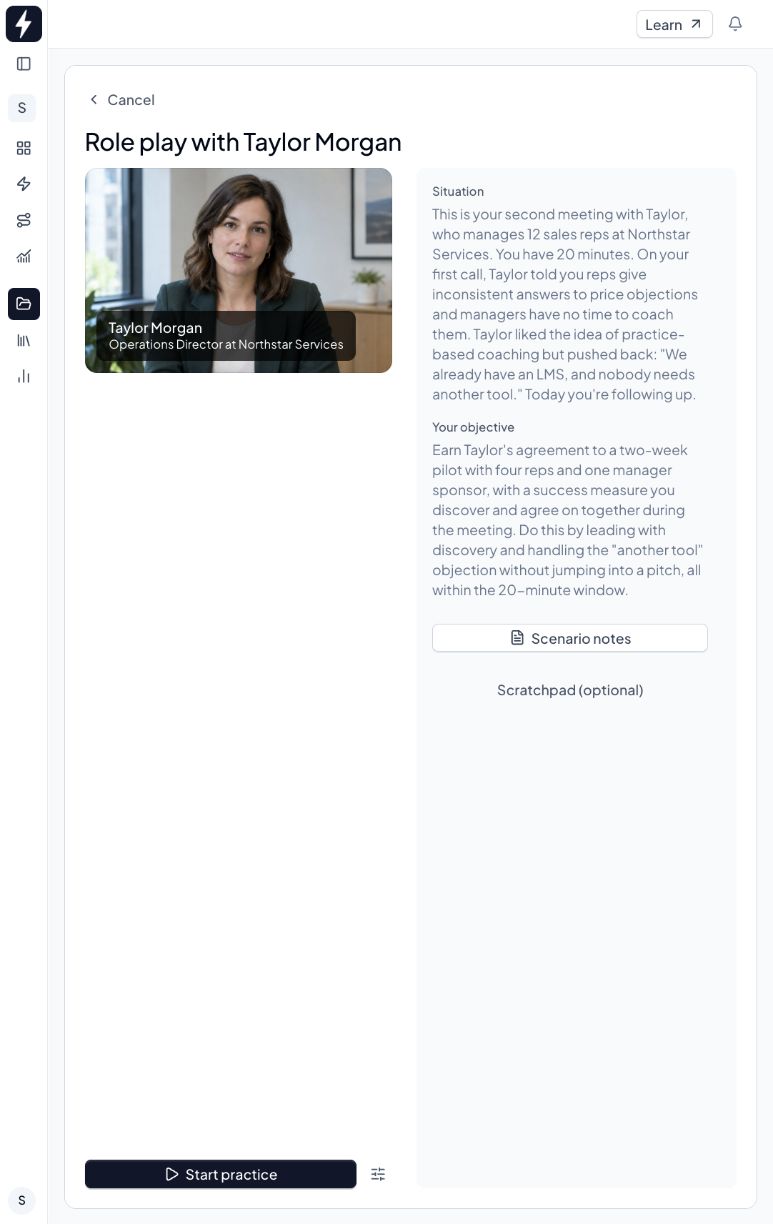
- Wait for Ready to practice on the card. Select See the setup to read the situation, then Practice to open the Scenario in SCP. Review the setup and select Start practice when you are ready.
ChatGPT can use context returned by your other connected apps when you authorize it. Connecting SCP gives ChatGPT access to SCP under your account permissions. Connect and authorize other apps separately when you want to use them for research.
Example requests
Section titled “Example requests”Prepare for a customer follow-up
Section titled “Prepare for a customer follow-up”Help me prepare for my follow-up with Taylor at Northstar Services. We discussed inconsistent responses to price objections, and Taylor said they already have an LMS. I want to agree on a small pilot. Ask me one question at a time to fill in any important gaps, then create private practice.
Use your calendar and email
Section titled “Use your calendar and email”Use this when you have connected and authorized those apps in ChatGPT.
Find my meeting with Jordan tomorrow, then look through our recent email exchange for the background. Tell me what you found and ask where else to look if anything important is missing. Help me practice asking useful discovery questions.
Rehearse a proposal discussion
Section titled “Rehearse a proposal discussion”Attach or paste the proposal and relevant background with your request.
Use this proposal and our conversation above to help me prepare for the follow-up. The customer is interested but worried about the time needed to get started. I want to understand that concern before offering a solution. Ask about anything that would change the practice, then create a private Scenario.
Share a Scenario with your Team
Section titled “Share a Scenario with your Team”Share this Scenario with the Inbound Sales Team. Show me the intended audience and the Scenario information they will be able to see before sharing.
ChatGPT checks the Teams and people you can share with. Sharing grants them permission to practice the Scenario. Keep customer-specific details in mind when choosing an audience. This sharing action does not include your scores, recordings, transcripts, or feedback.
Work on your next attempt
Section titled “Work on your next attempt”After completing practice in SCP and allowing time for your feedback to be prepared, ask:
Show me my feedback from that practice. Help me understand what went well and the most useful thing to work on in my next attempt.
If something gets stuck
Section titled “If something gets stuck”ChatGPT says “Couldn’t load connector”
Section titled “ChatGPT says “Couldn’t load connector””Check that the plugin file was prepared for your current ChatGPT account and its SCP connection. Send SCP support your plugin details-page address and the error message so we can check the package. This error can occur when a copied plugin points to another account’s private connection.
The card says “We couldn’t finish your practice”
Section titled “The card says “We couldn’t finish your practice””In the same chat, ask, “Try again using my original brief and the same request.” This resumes the existing creation request. If it still fails, contact SCP support with the error message and the time it occurred.
The image is still being prepared
Section titled “The image is still being prepared”When the card says Ready to practice, you can select Practice while the image finishes. The saved Scenario is available for you to use.
The connected account is wrong
Section titled “The connected account is wrong”Open the plugin’s Settings and check Connected accounts. Use Connect another account to sign into the intended SCP account. Review the account and Organization on SCP’s consent screen before authorizing it.
What happens next
Your Scenario starts privately in SCP. You can practice it, return to ChatGPT to discuss your own feedback, or explicitly choose a Team or person to share it with.