
Talk to Coach
You do not need to write a polished prompt. Use the microphone to talk through what is happening, what you are trying to accomplish, and any context that might help.
Coach turns your recording into text in the message box. You can review it, make changes, or add more context before sending it.
Use the microphone
Section titled “Use the microphone”-
Open Coach. Start a new conversation or continue an existing one.
-
Select the microphone in the message box. Allow microphone access if your browser asks.
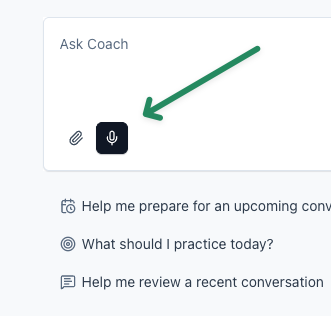
Select the microphone to begin speaking. -
Talk through your request. Share the situation, the people involved, what you have tried, and what you want to improve. You can pause, change direction, or add details as they come to mind.
-
Select Stop when you are finished. Coach processes the recording and adds the transcription to the message box.
-
Review the transcription. Correct anything that was misunderstood or add another thought.
-
Send the message. Coach uses the transcribed message the same way it uses something you typed.
Give Coach the full picture
Section titled “Give Coach the full picture”Speaking is useful when the context would take too long to type. You can explain an upcoming conversation, talk through something that went wrong, describe your sales process, or ask Coach to help you decide what to practice.
Do not worry about getting the wording perfect. Start with what is on your mind and let Coach ask follow-up questions when something important is missing.
If the microphone does not work
Section titled “If the microphone does not work”- If your browser asks for microphone access, allow it and try again.
- If the microphone is unavailable, type or paste your message instead.
- If the transcription is inaccurate, edit the text before sending it.
- If speech processing fails, your message is not sent automatically. You can try again or continue by typing.